
If the file you need is not displayed within the folder search, you may search for one that fulfils your requirements. The search toolbar is displayed at the top of the Search tab.
You can start a search by typing the name of the file(s) you are looking for into the Search files field to the left. By default, a search is executed against both a file’s name and its description; to search by file type, click the Show Search Options button to the right of the main search field. This displays the Search Options dialog, in which you can refine your search using the following:
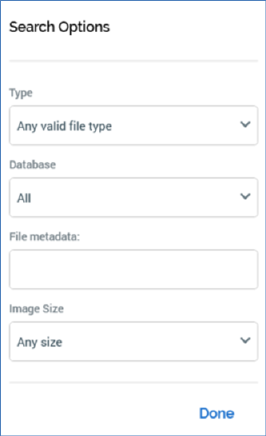
•Type: you can use the Type drop-down to select a file type to search for. The field lists all file types applicable to the current designer, along with default value ‘Any valid file type’. Selection of a value executes a search immediately, and the results are limited to the selected file type(s). Unless reset to ‘Any valid file type’, the file type restriction continues to be applied in addition to any further search criteria you specify.
•Subtype: this options is displayed when a specific Type has been selected. A dropdown provides access to all of the selected type's subtypes, plus 'Any subtype'. If no explicit subtypes are supported at a type, only the 'Any subtype' value is available. Application of a Type/Subtype filter limits the files displayed in accordance with the current selections. Note that, if an explicit Image size search option has been applied, Type is set to 'Asset' and Subtype to 'Image'.
•Database: this field is only available when one or more auxiliary databases have been configured at the current RPI client. In addition, it is only available in the following contexts:
o Rule Designer
o Model Project Designer
o Audience Designer
o Offer Designer
o Interaction Designer
o Asset Designer
o Smart Asset Designer
o Export Template Designer
o Cell List Designer
o Subscription Group Designer
o Landing Page Designer
o Data Connectors Interface
o Dashboard Designer
o Configuration Workbench
A dropdown field, it exposes the values ‘All’ (the default), ‘Data Warehouse’, and one row per configured auxiliary database.
Search results are filtered in accordance with the selection made therein. If an auxiliary database is selected, the following file types may be retrieved:
o Attribute
o Selection rule
o Analysis panel
o Export template
•Image size: This dropdown field exposes the following options:
o Any size (default)
o Small (Images with an area size smaller than 120,000px (e.g. 400x300))
o Medium (Images with an area size between 120,000px and 480,000px (e.g. 400x300 to 800x600))
o Large (Images with an area size greater than 480,000px (e.g. 800x600))
o An exact size: selection of this option displays width and height fields. Both default to 100, and the minimum permissible value is 1, the maximum 99999.
If you specify an explicit image size, non-image asset files that match other search criteria are not returned; when you set Image size to a value other than Any size, the Type field is set to a read-only ‘Image assets only’.
Note that you cannot search by image size at an external content provider or Recent Items.
You can close the dialog by clicking the Close button provided. Clicking off the dialog has the same effect.
Search results that match the entered criteria are displayed in the folder search after a second's delay following the entry of a character in the search field.
As you enter search string characters, if the characters entered match a previous search string, that string is displayed within the search field.

The previous search string is removed from display at the point at which the entered characters diverge from it.
By further qualifying the search string, and pausing for another second, you can execute another search, the results of which replace the existing results within the folder search. You can also choose to execute an entirely new search, the results of which will replace the previously-displayed search results.
Search criteria are not case dependent.
Typing '*' into the search field retrieves all files of relevance to the current folder search across all folders to which you have access in RPI file system.
You can view a list of recent searches in a drop-down list, accessed to the right-hand side of the main search field.
The dropdown lists the most recent searches undertaken by the currently-logged in user. The list’s contents are displayed in reverse chronological order. You may select a search from the list in order to re-execute it. Up to the 15 most recent searches are displayed. Only search strings in respect of which a search was actually executed are added to the recent searches list.
When a search is executed, files are retrieved where:
•Files are relevant to the current interface – for example, a search executed within the Rule Designer will retrieve attributes, but not audiences.
•If searching on name and description, the search criteria (as entered literally) are found anywhere with the file’s name (e.g. a search for ‘first name’ returns ‘Customer first name’ but not ‘Customer name’).
•If a file type has been specified, only files of that type are retrieved.
•If searching by image size, are image files of the specified size.
•Irrespective of search type, the file is persisted within an RPI file system folder to which you have read or write access, within the current search context, or a subfolder thereof.
Note that external files are not returned in the results of a search executed across all folders.
At any time, you may click the Cancel Search button to clear the displayed search results in order to return to the default Search tab display. Deletion of your search criteria has the same effect.