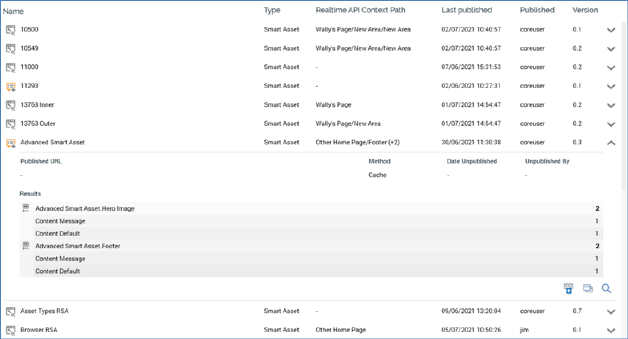
The read-only published content list is displayed below the header, and displays all published content matching the currently-specified filter criteria.
If no content matches the criteria, a message is displayed.
Each piece of published content is displayed by default with its details hidden. The following are displayed for each:

•Icon: indicating the type of published content
•Name
•Type: one of Smart Asset, Landing Page, Advanced Smart Asset or Goal Smart Asset.
•Realtime API Context Path
•Last Published: the date/time at which the content was last published.
•Published By: the username of the user who last published the content.
•Version: the version of the file at the point when the content was published.
The following additional properties are displayed when the details of a piece of content are shown:
•If the content is a smart asset (other than a goal or advanced smart asset), the following are shown:
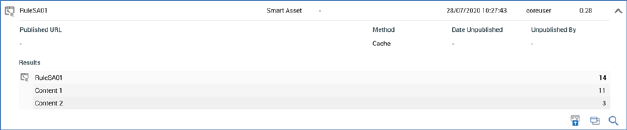
o Published URL: you can copy the URL to the clipboard using a context menu option.
o Method: the method that was used to publish the content; one of Cache, or, if a web publish site, FTP, Network copy or External content provider.
o Results: broken down by list asset.
•If the content is a landing page, the following are shown:
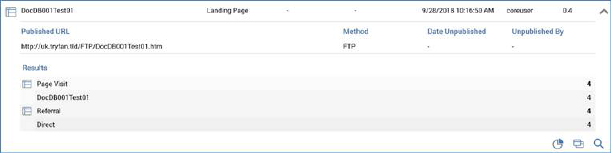
o Published URL: you can copy the URL to the clipboard using a context menu option. You can also open the landing page in a browser using the hyperlink provided.
o Method
o Date Unpublished
o Unpublished By
o Results: including Page Visits, Referrals and Form Submissions
•If the content is an advanced smart asset, the following are shown:

o Published URL
o Method
o Results
•If the content is a goal smart asset, the following are shown:
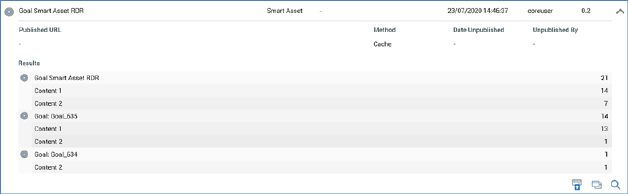
o Published URL
o Method
o Results
•If the content is a rule (selection rule or realtime decision), the following are shown:
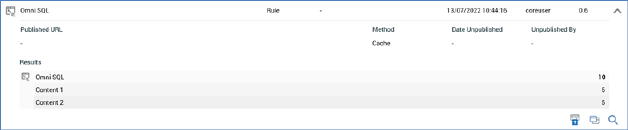
•The following buttons are displayed irrespective of file type:
o View Realtime Details: displays the published content in the Realtime Details interface.
o Open Latest Version: displays the published content file in an appropriate designer instance.
o View File Information: displays the published content file's details in the File Information Dialog.