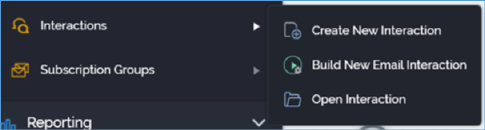
You can invoke the Interaction Designer in the following ways:
•From the quick access menu’s Interactions menu. The menu exposes the following options:
•From a Tasks or File Type widget. Typically, these might be displayed at your Home Page. For more information on widgets, please see the Dashboard Designer documentation.
By double-clicking an Interaction file in the File System Dialog, or by highlighting an Interaction and clicking OK in the same context.
•By viewing the latest version of an interaction contextually.
Note that access to the Interaction Designer is controlled via the Interaction – Design functional permission. If none of the user groups of which you are a member are associated with this permission, you will not be able to able to access the Interaction Designer.
If you access the Interaction Designer with only the Interaction – Design functional permission, the toolbox therein appears empty (other than providing access to the Note), and functionality is locked down.
To build interactions, you will also require the Interaction – Build functional permission. In addition, the following functional permissions provide additional, granular control within the Interaction Designer:
•Interaction – Execute Test: allows you to execute workflows in Test mode.
•Interaction – Execute Production: allows you to execute workflows in Production mode.
•Interaction – Rollback: allows you to roll back Production workflows.
•Interaction – Workflow Builder: allows you to use the Builder to create an email interaction.
•