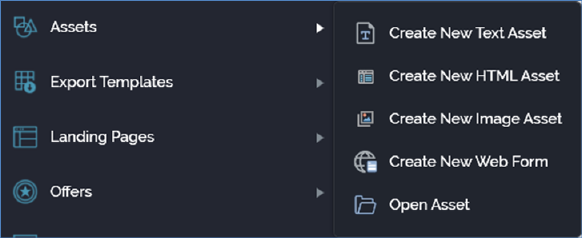
You can invoke the Asset Designer in the following ways:
•From the quick access menu’s Assets menu. The menu exposes the following options:
•From a Tasks or File Type widget. Typically, these might be displayed at your Home Page. For more information on widgets, please see the Dashboard Designer documentation.
•By double-clicking an asset file in the File System Dialog, or by highlighting an asset and clicking OK in the same context.
•By viewing the latest version of an asset contextually – for example, from the F2FButtonImage setting in the System Configuration interface.
Access to the Asset Designer is protected by a series of functional permissions:
•The Asset - Design permission gives access to the Asset designer, but does not allow you to open, edit or create assets. You may import assets if required.
•To open, edit or create assets, you must be associated with an appropriate functional permission. For example, to work with HTML assets, you must be associated with the Asset - HTML - Design functional permission. The following asset type-specific functional permissions are provided:
o Asset - HTML - Design
o Asset - Image - Design
o Asset - Text - Design
o Asset - Web Form - Design