This option is available in the following contexts:
•Email Offer Designer - HTML Email Content - Rich Text mode
•Email Offer Designer - HTML Email Content - HTML mode
•Landing Page Designer - Rich Text mode
•Landing Page Designer - HTML mode
•Asset Designer - HTML Asset - Rich Text mode
•Asset Designer - HTML Asset - HTML mode
The button allows you to insert a button that will facilitate navigation to a given SurveyMonkey survey.
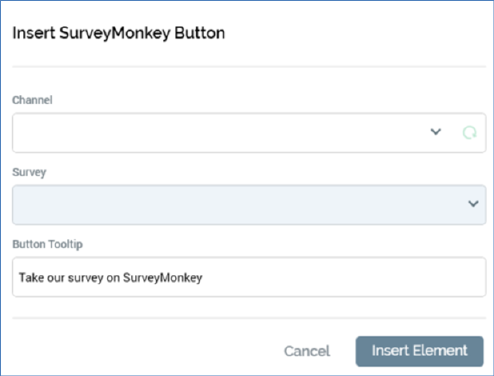
Clicking it displays the Insert SurveyMonkey button dialog.
It contains the following:
•Channel: mandatory. A dropdown listing all currently-configured SurveyMonkey channels.
•Sync surveys: this button is enabled when a Channel has been selected. Clicking it populates the Survey dropdown with details of all of the channel’s associated surveys.
•Survey: mandatory. A dropdown listing all surveys associated with the currently-selected channel. Populated by invocation of Sync surveys.
•Button tooltip: an optional property that defaults to ‘Take our survey on SurveyMonkey’, and which can be a maximum of 1000 characters in length.
•Insert Button: clicking this button adds a SurveyMonkey Page button to the current content.
•Cancel: clicking this button removes the dialog from display.