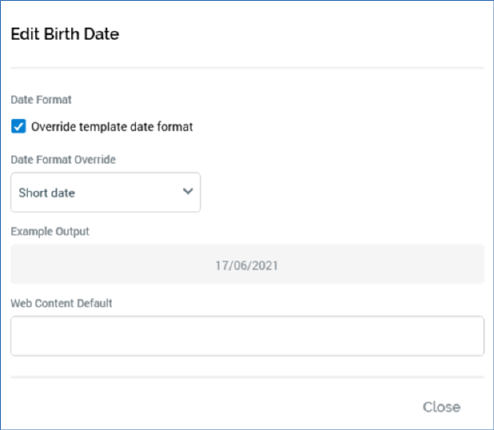
This dialog is displayed on invocation of Edit (from the context menu, or the Embedded Items dialog) in the context of a date/time or date attribute. Invocation displays the Edit [Attribute Name] dialog.
The dialog contains the following:
•Override template date format: a checkbox, unchecked by default. Checking this property displays Date format and Example output.
•Date format: a dropdown field, exposing the following values:
o Use custom format
o Long date
o Long date and long time
o Long date and short time
o Month day
o Short date (default)
o Short date and long time
o Short date and short time
o Short time
o Long time
o Sortable
o Year month
•[Custom format]: this property allows you to manually specify a date format. It is only displayed if Use custom format is selected. It is mandatory if shown.
•Example output format: illustrates the selected date format using the current date and time.
•Web content default: used to provide an optional default value for the attribute. This is used when customizing landing page content through the inclusion of an attribute in landing page content; if a realtime cache value is available for the attribute, it is shown when the page is rendered. If a value is not available and a Web content default value has been provided, the default is displayed. If neither is available, no content is rendered.
Note that, when used in an email offer, application of a date format at an attribute overrides any overall date format applied at the offer itself.